Download 3D Models
From Any Website
Automatically downloads GLB, FBX, OBJ + HD PBR textures, rigging, and animations from Meshy, Tripo3D, Sketchfab and more. One click — files saved to your PC.
Get Access — $10/monthPay with USDT via Binance · Windows only · 5-minute setup
▶ Watch the full setup & demo video
How to Install & Use
Step by Step
No technical experience needed. Follow each step in order — takes about 5–10 minutes total.
Before You Start — Install These Once
Install Python on Your PC
Python is a free program the tool needs to run. If you already have it, skip to the next step.
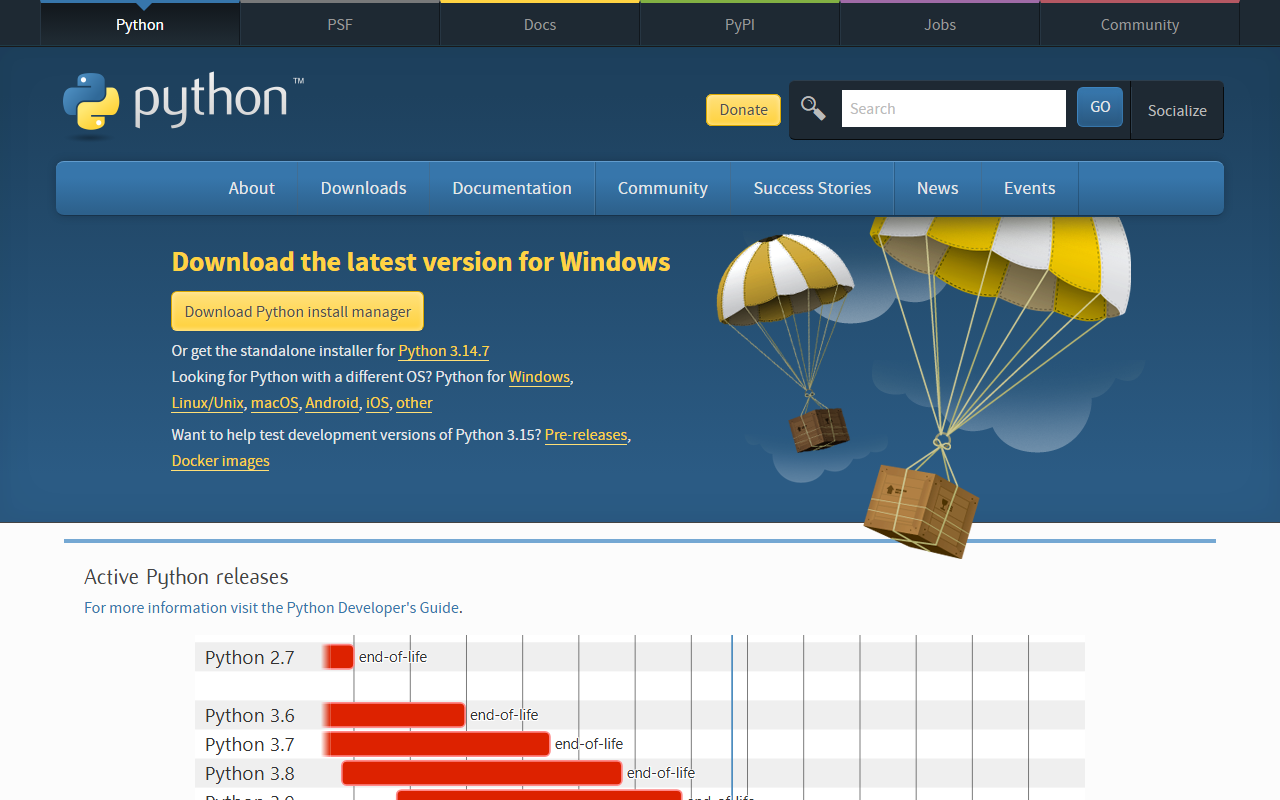
- Open your browser and go to python.org/downloads
- Click the big yellow "Download Python" button
- Run the downloaded file
- IMPORTANT: On the first install screen, tick the box that says "Add Python to PATH" — this is easy to miss!
- Click "Install Now" and wait for it to finish
⚠️ Make sure you tick "Add Python to PATH" during installation. If you miss this, the tool will show an error when you run it.
Install Node.js on Your PC
Node.js is another free program the tool needs. It handles the actual downloading of 3D files.
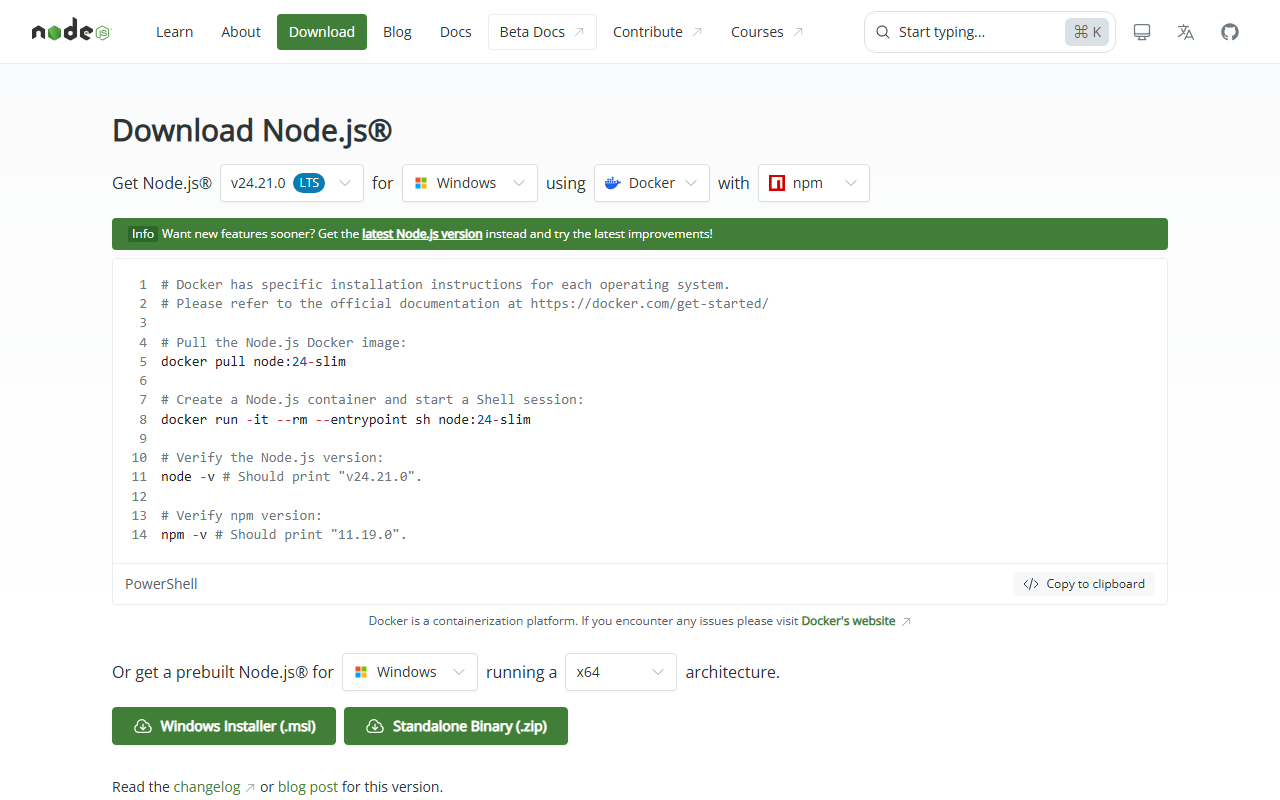
- Open your browser and go to nodejs.org
- Click the button labelled "LTS" (recommended version)
- Run the downloaded file and click Next through all the screens
- Installation is automatic — no extra settings needed
✅ Once Python and Node.js are installed, you only need to do this once — they stay on your PC forever.
Get Your License
Pay $10 USDT & Get Your License Key
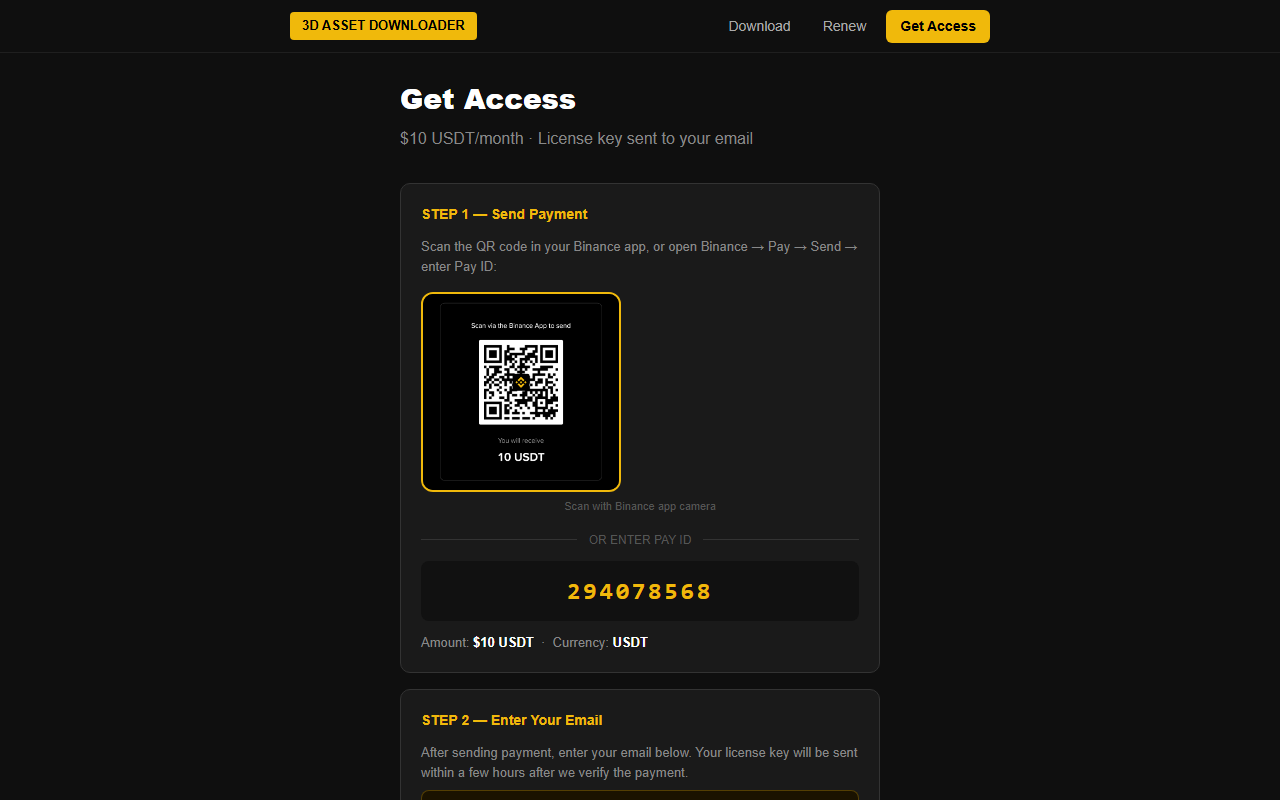
The tool costs $10 per month, paid with USDT (a digital dollar) via Binance. You get a unique license key sent to your email that activates the tool.
- Click Get Access in the top menu
- Open your Binance app on your phone
- Tap Pay → Send → Scan QR and scan the code on screen — or tap Enter Pay ID and type the ID manually
- Send exactly $10 USDT
- Come back to the website and enter your email address in the form
- Check your email — your license key arrives within a few hours (format: 3DD-XXXX-XXXX-XXXX)
📬 Check your Spam / Junk folder if the email doesn't arrive in your inbox within a few hours. Mark it as "Not Spam" so you receive future emails normally.
Install the Tool
Download & Extract the Tool
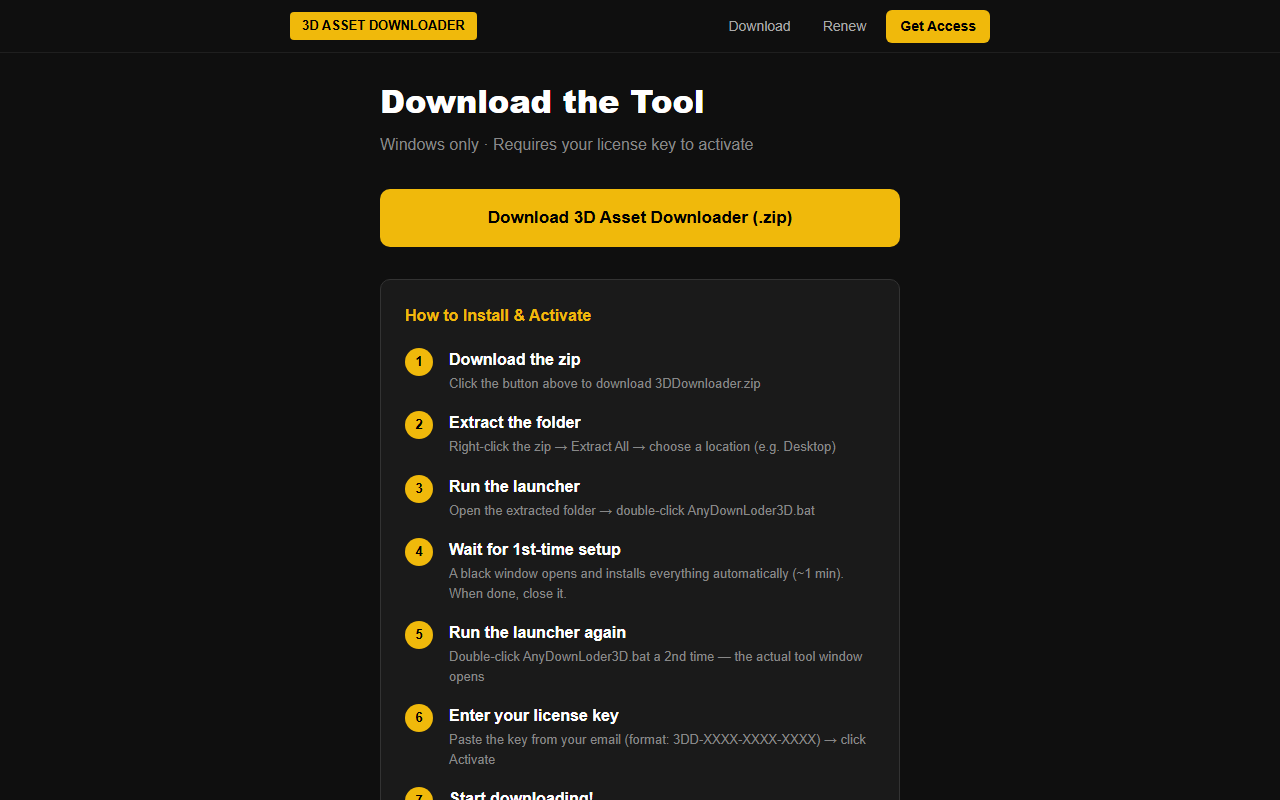
The tool comes as a .zip file (a compressed folder). You need to extract it before you can use it.
- Click Download in the top menu
- Click the big yellow "Download for Windows (.zip)" button for your platform
- Wait for the file to finish downloading (usually goes to your Downloads folder)
- Find 3DDownloader.zip in your Downloads folder
- Right-click the zip file → click "Extract All..."
- Choose where to save it (e.g. your Desktop) and click Extract
- A new folder called 3DDownloader appears — open it
Run the Setup (Takes ~1 Minute)
Inside the extracted folder you will see a file called AnyDownLoder3D.bat. Double-clicking it runs the first-time setup automatically — it installs everything the tool needs.
- Inside the 3DDownloader folder, find AnyDownLoder3D.bat
- Double-click it — a black command window opens
- You will see text scrolling — this is normal, it is installing automatically
- Wait until the text stops scrolling (about 1 minute)
- When it says "Launching 3D Asset Downloader...", the setup is done
- Close the black window — the tool may open immediately on first run
⚠️ If a Windows warning appears saying "Windows protected your PC" — click More info then Run anyway. This happens because the file is new and unsigned — it is completely safe.
🛡️ If it still does not run or nothing happens — right-click on AnyDownLoder3D.bat and choose "Run as administrator". This gives the setup the permissions it needs to install correctly on your PC.
Enter Your License Key
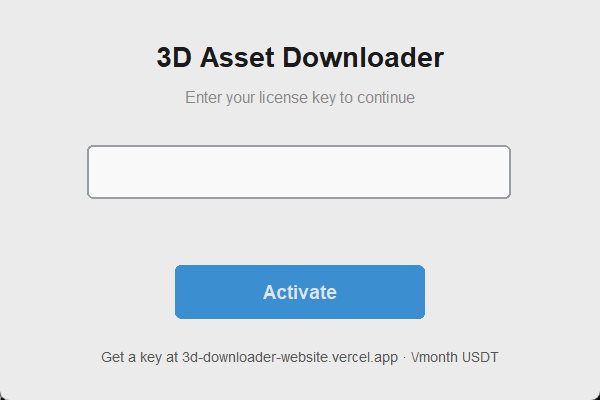
The first time the tool opens, it will show an activation screen and ask you to enter your license key. Your key was sent to your email after payment — it looks like 3DD-XXXX-XXXX-XXXX.
1. First — check your email for the payment confirmation:
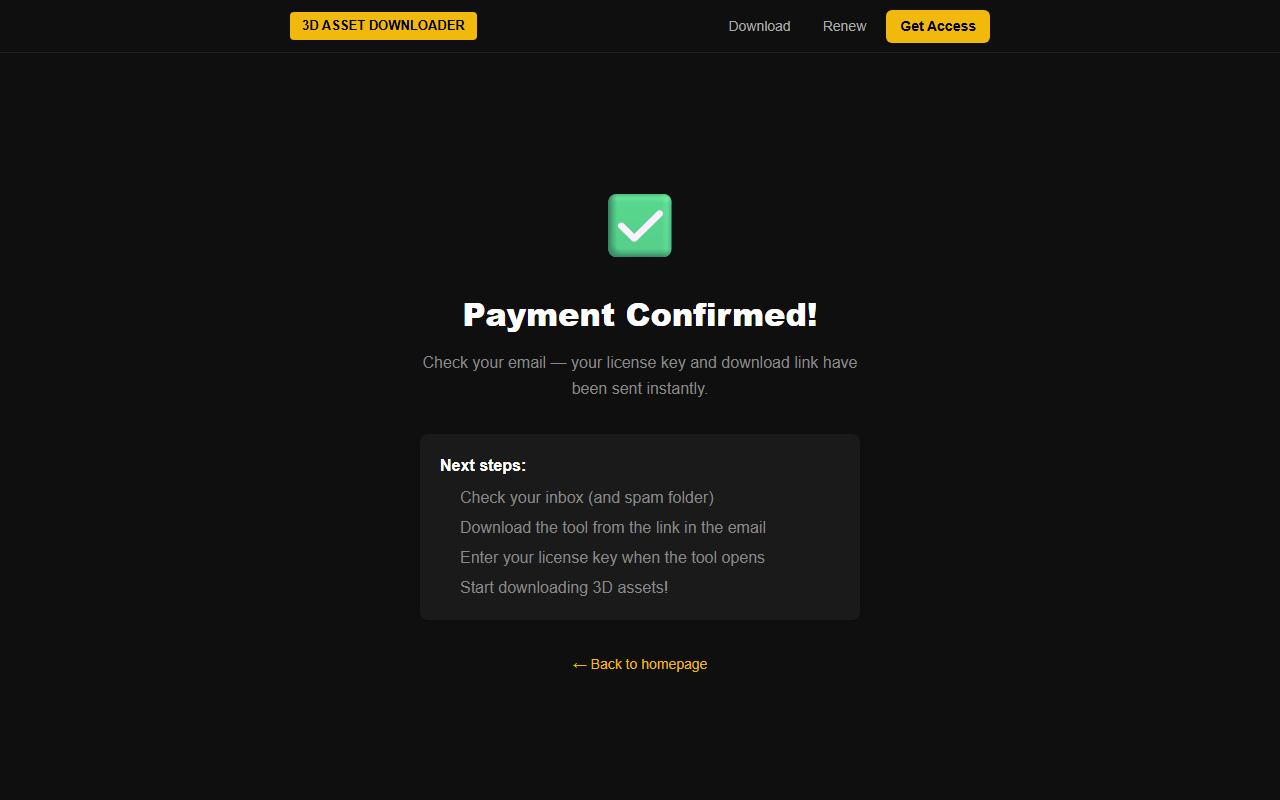
- Open your email inbox and find the message from MeshGrab
- Copy the license key from the email — format: 3DD-XXXX-XXXX-XXXX
- The tool activation window opens automatically when you launch the tool
- Paste the key into the license key field (Ctrl+V)
- Click Activate
- The tool opens immediately — you are ready to download!
2. Enter your key in this activation window:
✅ Your license is saved on your PC — you only enter the key once. Next time you open the tool it goes straight to the main screen automatically.
Download Your First 3D Model
Paste a Model URL & Click Download
The tool works with Meshy, Tripo3D, and Sketchfab. Open any model on those sites, copy the page URL, and paste it into the tool.
- Open app.meshy.ai, tripo3d.ai, or sketchfab.com in your browser and find a model you want
- Copy the URL from your browser's address bar (Ctrl+C)
- Switch to the MeshGrab tool
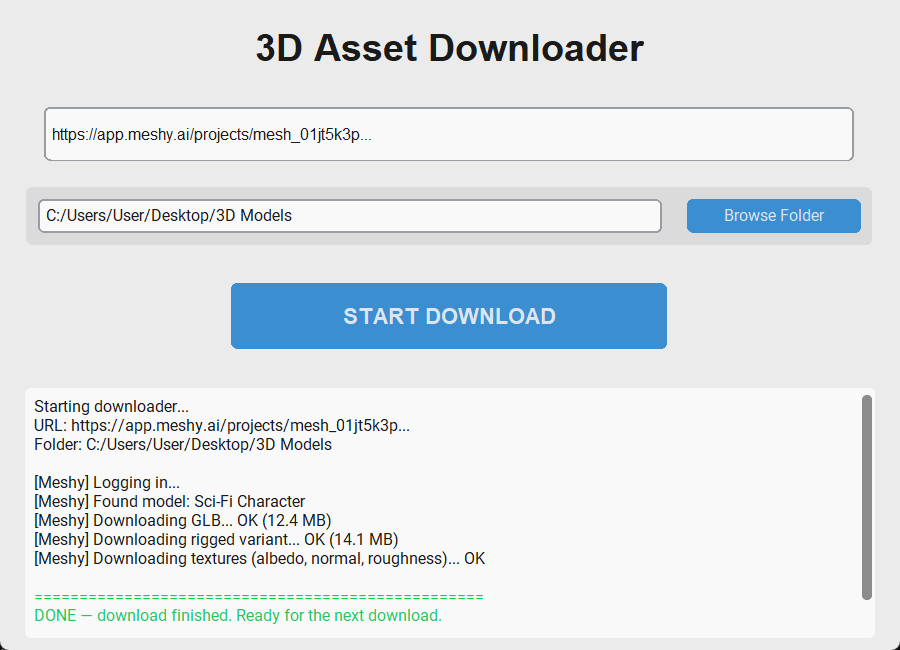
- Click the URL field at the top and paste the URL (Ctrl+V)
- The Download Folder is already set — change it with Browse Folder if you want files saved somewhere specific
- Click the big START DOWNLOAD button
- Watch the log at the bottom — it shows progress in real time
Your 3D Files Are Ready
When the log shows "DONE — download finished", all files are saved to your chosen folder. Open the folder to find your models.
- When you see "DONE — download finished" in the log, the download is complete
- Open your download folder (the path shown in the tool)
- Find your files — .glb, .fbx, .obj and texture images are all there
- Import them into Blender, Unity, Unreal, or any 3D software
- Ready for the next one — paste a new URL and click download again!
✅ For Meshy and Tripo3D, the tool automatically downloads all variants — original, rigged, and animated — plus all PBR textures. You get everything in one click.
Pay with USDT via Binance · Windows only · Cancel anytime
What You Get
- Unlimited downloads
- All supported platforms
- Instant email delivery
- Cancel anytime (just stop paying)
Already subscribed? Renew here